|
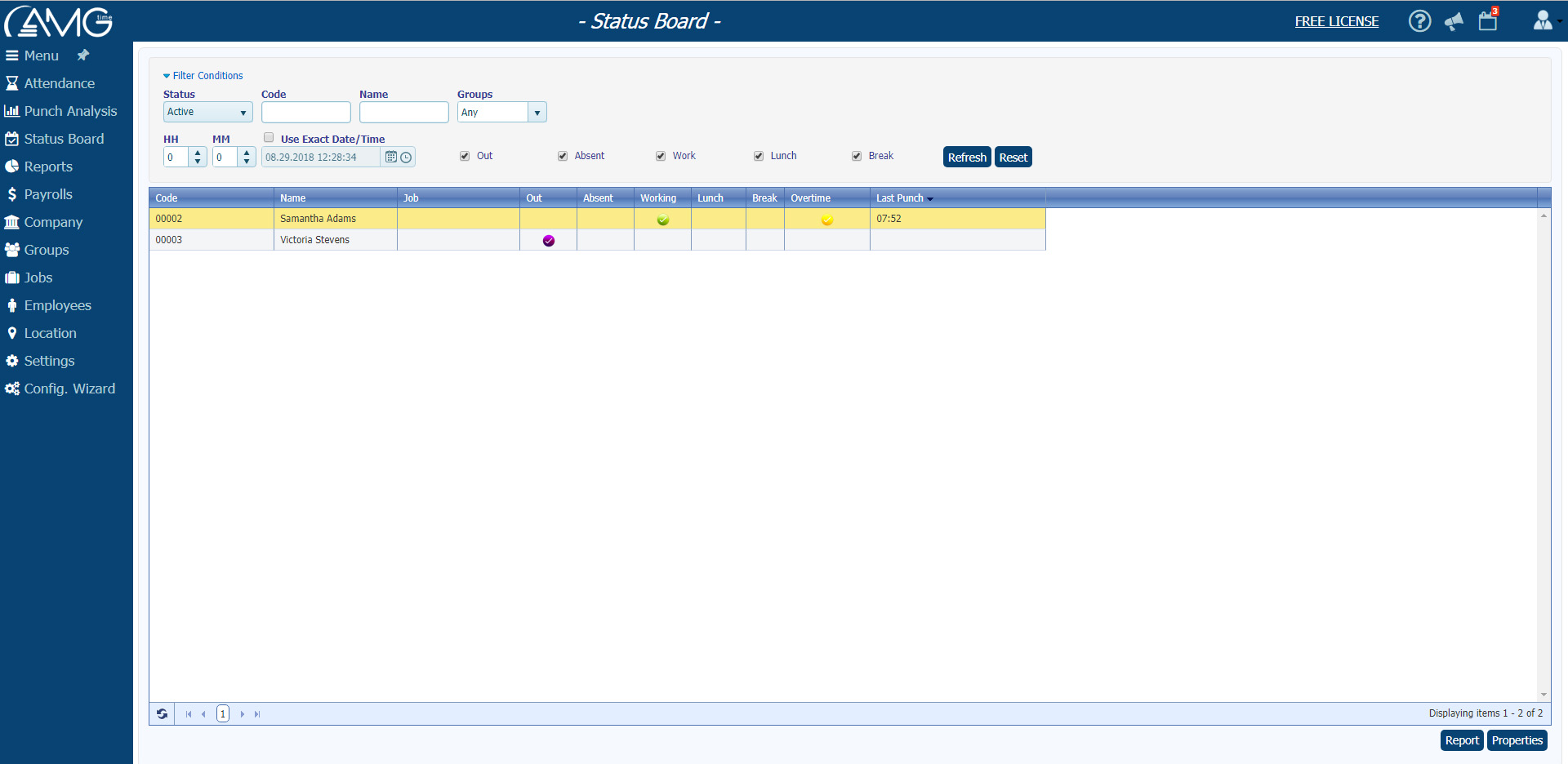
The Status Board page shows In/Out status, Job (if one is assigned), and employees' overtime hours at the time of viewing or at any moment in the last 99 hours and 59 minutes.
The possible statuses which can be shown in the table are as follows:
- Out - Violet
- Absent - Red
- Working - Green
- Lunch - Blue
- Break - Yellow
If the employee has overtime hours, then the Overtime column will display either how much time is left until overtime hours start (e.g. -1:30) or how much overtime the employee has already worked (e.g. 1:30). Overtime will be displayed only when the status of an employee is Working.
If the employee is working in a Department or on a Job, then the Job column will display the code and name of the Department or Job.
Filtering
The Status Board page can filter data. This allows for filtering of employees by set criteria, either for the present or a selected time frame.
To filter the list of employees, do the following:
- In the Employee Filter panel, choose the criteria by which you want to filter.
If you want to go back to a certain time frame in the past, enter the date and time into the Use Exact Date/Time field.
If you want to go back for a certain amount of hours/minutes, then disable the Use Exact Date/Time checkbox and enter the desired amount of time in the Hours Back field.
- Click on the Refresh button.
After filtering, the Employees table will display only those employees who correspond to the set criteria. If no employee matches the criteria, then no record will be displayed. To view all the employees, or to start over, click on the Reset button.
 Note: Note: |
| You can simultaneously filter by more than one criteria. |
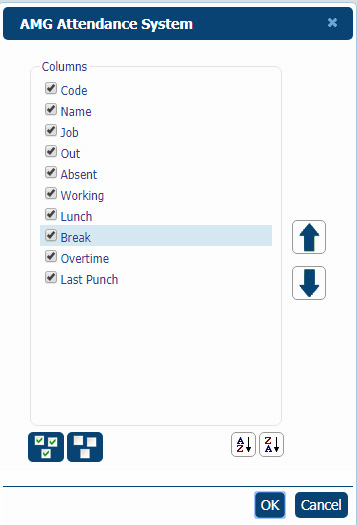
To open the Status Board Properties window, click on the Properties button. This will provide you the ability to hide/show each column of the Status Board table separately.
Here you can generate reports on employees' In/OUT statuses. For that, click on the Report button. The report will display only those employees selected in the list.
|