| Punch Analysis |
|
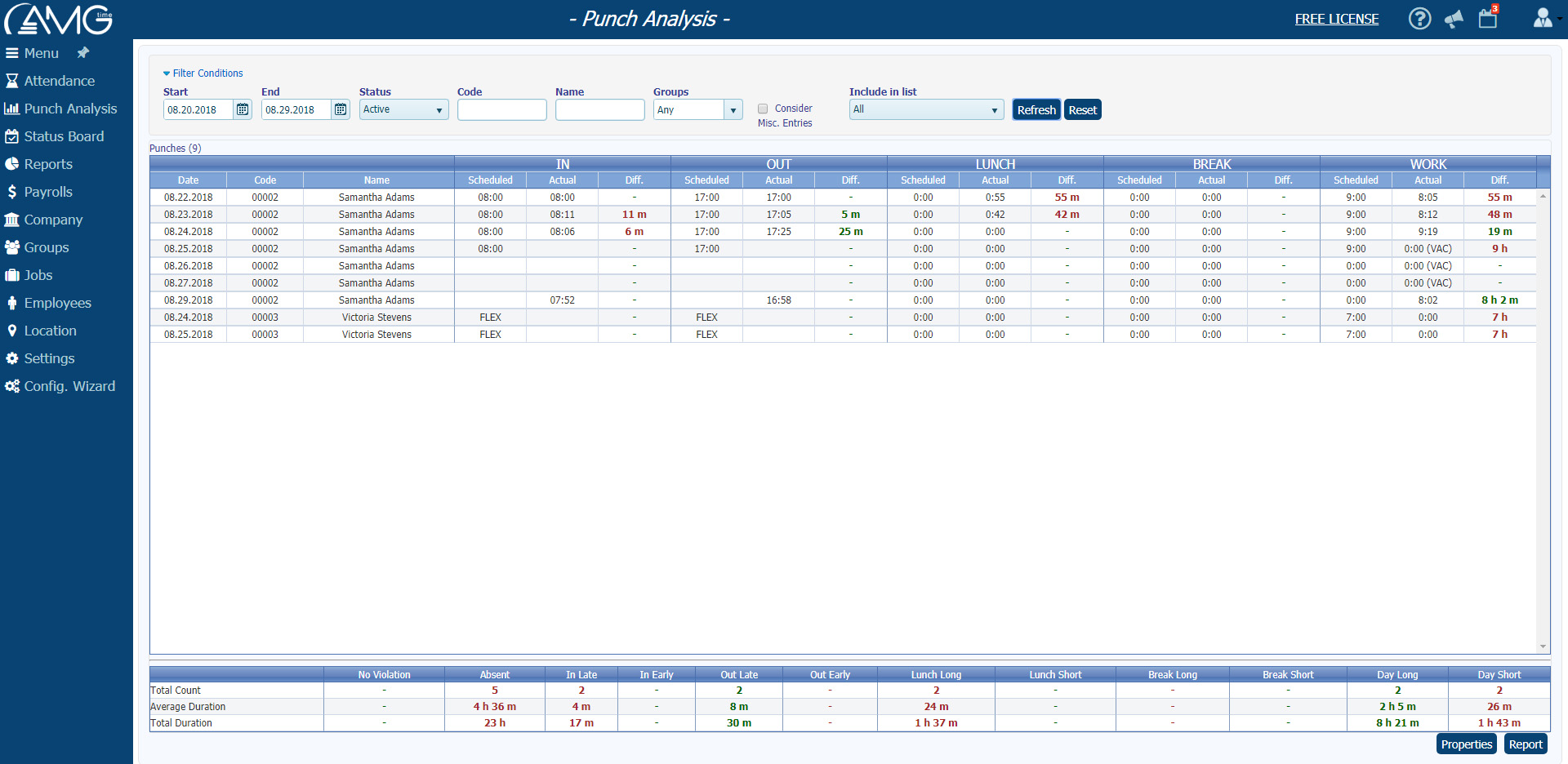
To access the Punch Analysis report, click Reports > Punch Analysis On this page, you can to view an analysis of committed IN, OUT, LUNCH and BREAK punches.
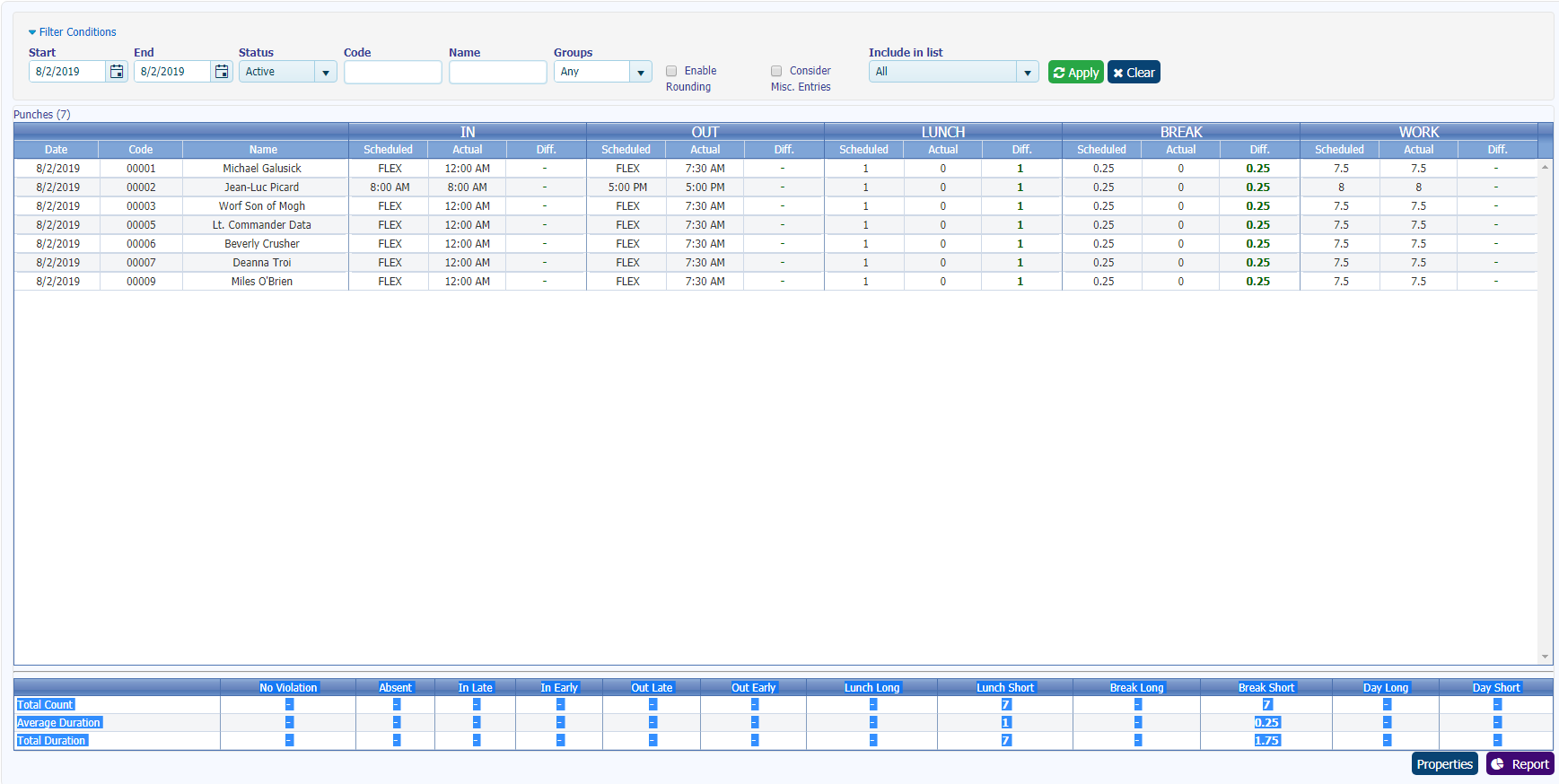
The results of the analysis are presented in a table where every record corresponds to the punches of one employee for one day.
The main sections of the table are IN, OUT,LUNCH, BREAK, and WORK. Each section contains three columns which display the following information:
 The following information is displayed in a separate section of the table at the bottom of the page:
Filtering The Punch Analysis report can be filtered to provide insights into specific areas. To filter the list of punches, do the following:
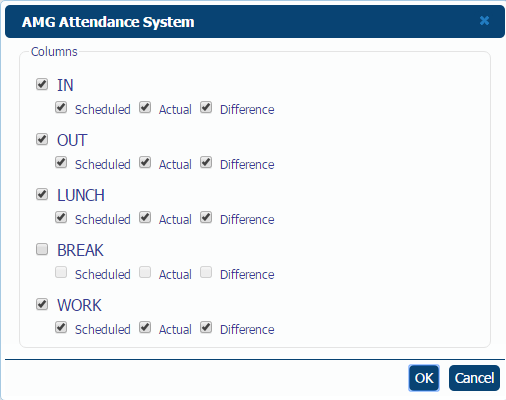
After filtering, the list of punches will display only those employees and/or punches which correspond to the set criteria. If no employee and/or punch matches the criteria, no record will be displayed in the table. To reset all entered filter conditions, click on the Reset button. Clicking on the Properties button will open the Properties window. This window can hide/show each column of the Punches table separately. You can also generate reports on punches. To do so, click on the Report button. The report will display only those punches which are shown in the list. |