|
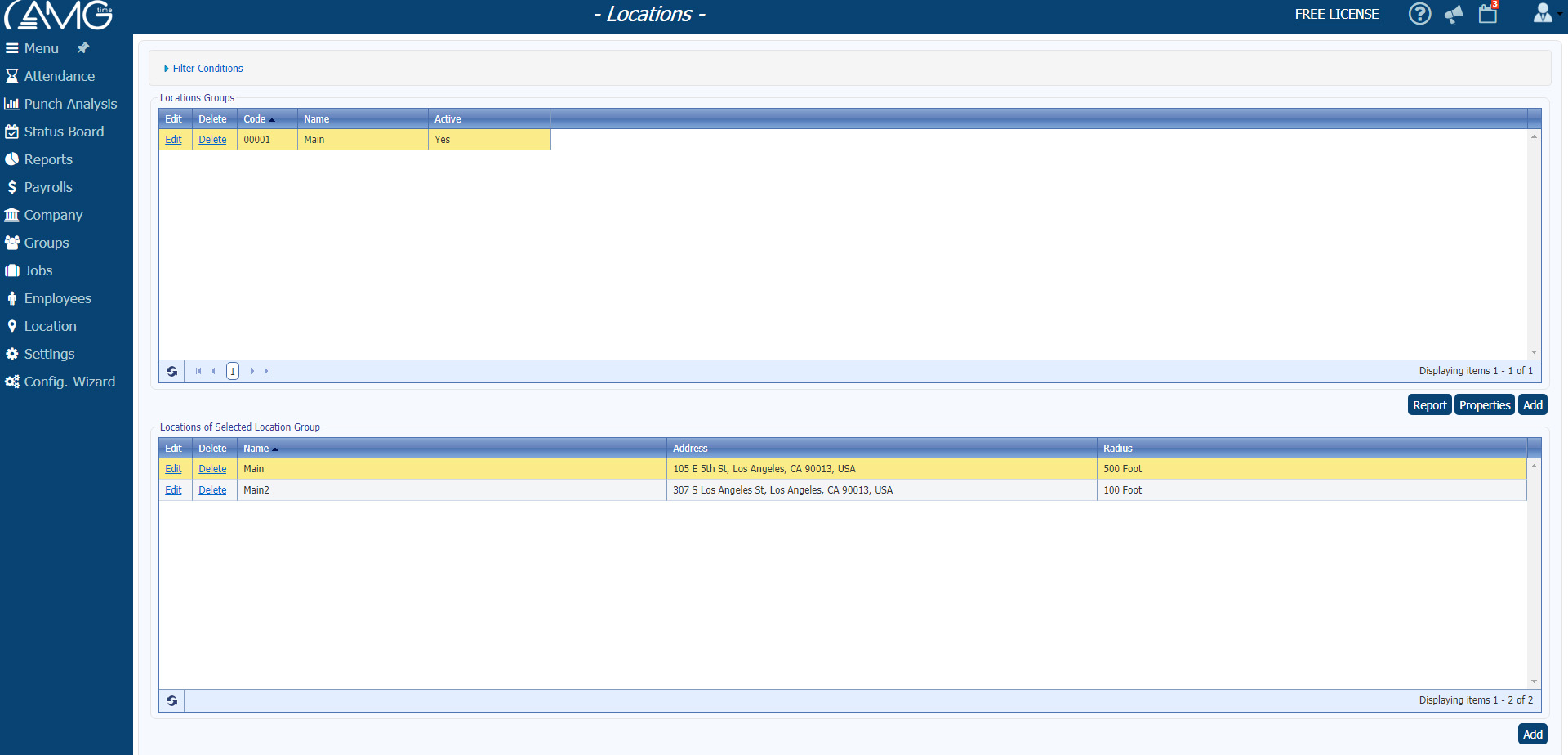
The Location Groups page allows you view the list of all location groups, add new location groups and locations within them, edit and delete them.
The page has two lists: the list of location groups and the list of locations within them. Both lists can be sorted by any column both ascending and descending- by clicking on the desired sort Column's title.
The list has other properties that can be altered: the columns can be hidden or displayed, the order of the columns can be changed, and the list of location groups can be filtered by some criteria. (Click here to see the description of these properties.)
To add new location group:
- Click on the Add button below the list of location group. A new page opens - Add Location Group page.
- Enter the code and name of the group into the Code and Name text boxes, respectively.
- Click on the OK button.
 Note: Note: |
| Code and Name are unique and mandatory values. Before entering these values, make sure that there is no other group with the same Code or Name. |
To edit a group:
- In the list of Location Groups select the group you want to edit.
- Click on the Edit button below the list of location groups. (A new page opens- Edit Location Group page.)
- Make the necessary changes.
- Click on the OK button.
To delete a group:
- In the list of Location Groups select the group you want to delete.
- Click on the Delete button.
| Note: |
| Location groups, that are assigned to at least one employee can't be deleted. |
To make a location group active/inactive:
- In the list of Location Groups select the group you want to make active/inactive.
- Click on the Edit button below the list of location groups. A new page opens - Edit Location Group.
- Select Active check box to make the location group active, or deselect - to make inactive.
- Click on the Ok button.
| Note: |
| By default the Location Groups list only display active location groups. To also see inactive groups in the list, open the Filter button and select the Inactive option from the Status combo box. |
To add a new location within a group:
- In the list of Location Groups select the group in which you want to add a new location.
- Click on the Add button below the list of locations. A new page opens - Locations page. It includes list of locations in the selected location group, and a map where all defined locations are identified with pins. Note: An Internet Connection is mandatory to see the map and to add new locations.
- To add a new location, in the Enter Address field enter the address of the location and click on the Find button. If the entered address is correct, the system will navigate the map to your entered location and automatically open the Add Location page with the entered location parameters. If you don't know the address, you can find the necessary location on the map (without entering an address) and click on the location on the map. Doing so will open the Add Location page with selected parameters.
In the Add Location page
- enter the name of the location into Name field,
- enter radius into Radius field,
- select measure unit of radius: it can be either in Feet or in Meters,
- click on OK button.
- The new location will be added into the Location list.
To edit a location:
- In the list of Location Groups click on the location group for the location that you want to edit.
- In the list of Locations click on the location you want to edit.
- Click on the Edit button below the list of locations. (A new page opens - Locations and Edit Location page.)
- In the Edit Location page edit the location according to your needs. Please note that only Name, Radius and Measure Unit can be edited and that Address cannot be changed. If you need to change the address, delete the location and add a new location with the corrected address.
- Click on the Ok button.
- The Edit Location page will be closed.
To delete a location:
- In the list of Location Groups select the group the location of which you want to delete.
- In the list of Locations select the location you want to delete.
- Click on the Delete button below the list of locations.
Here you can also generate report on program's locations groups and locations. For that you should just click on the Report button. In the report will be displayed only those location groups which are at the moment displayed in the list.
|